
Floor Plan Creator
Lucidchart is an intelligent diagramming application that makes creating a floor plan diagram easy with drag-and-drop shapes, ready-to-use templates, and more.



By registering, you agree to our Terms of Service and you acknowledge that you have read and understand our Privacy Policy.


Maximize your space’s potential with our floor plan maker
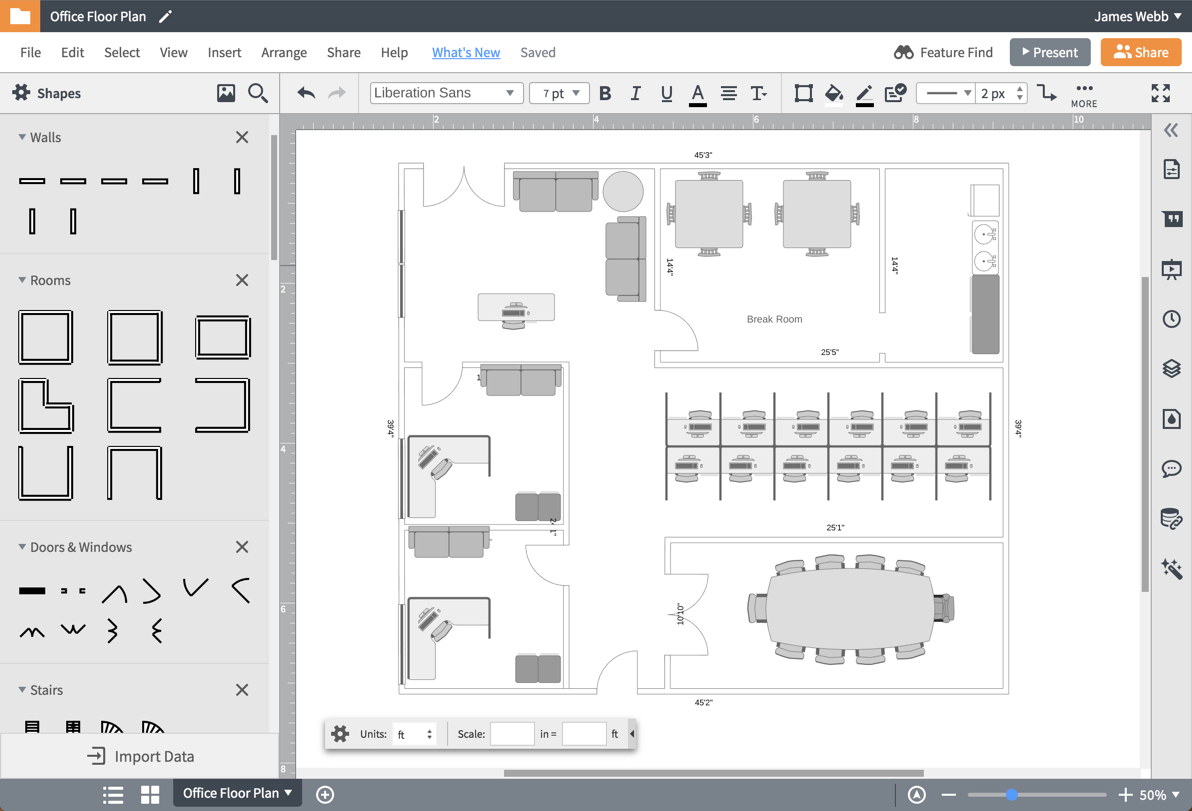
Floor plan Creator for all projects and users
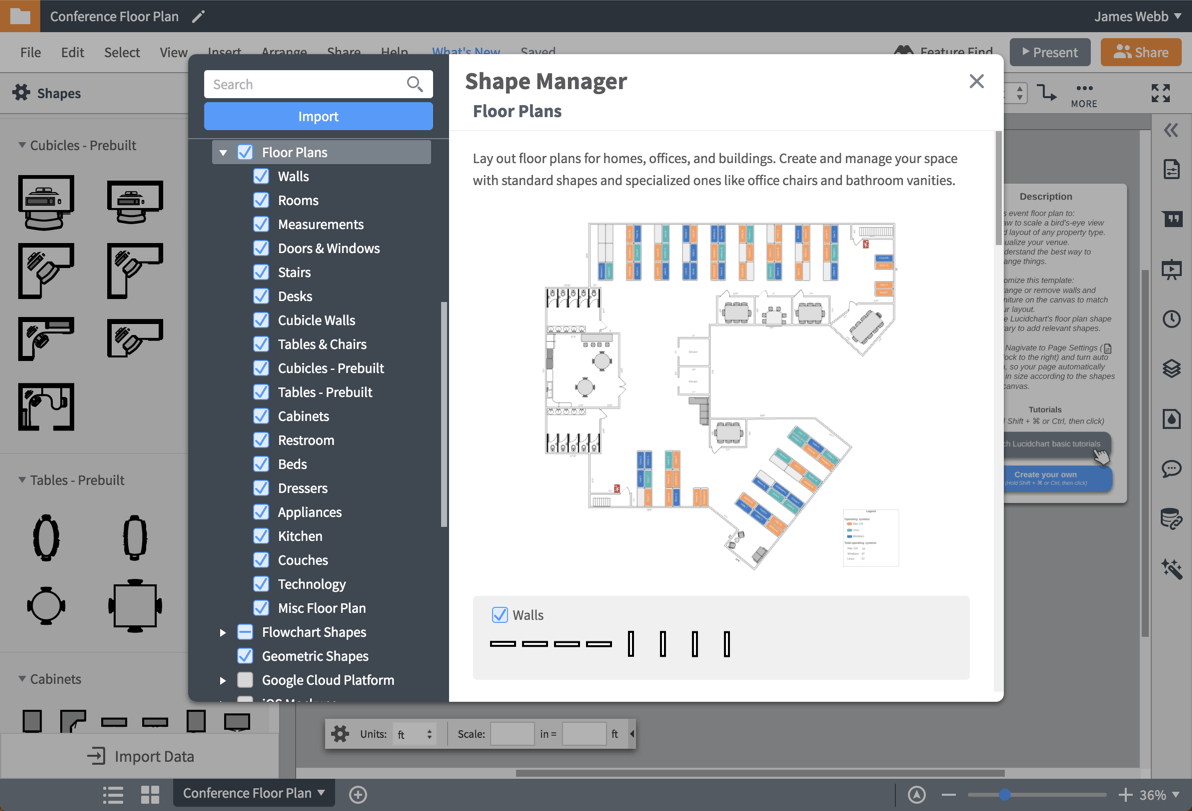
Utilize shape libraries and floor plan templates
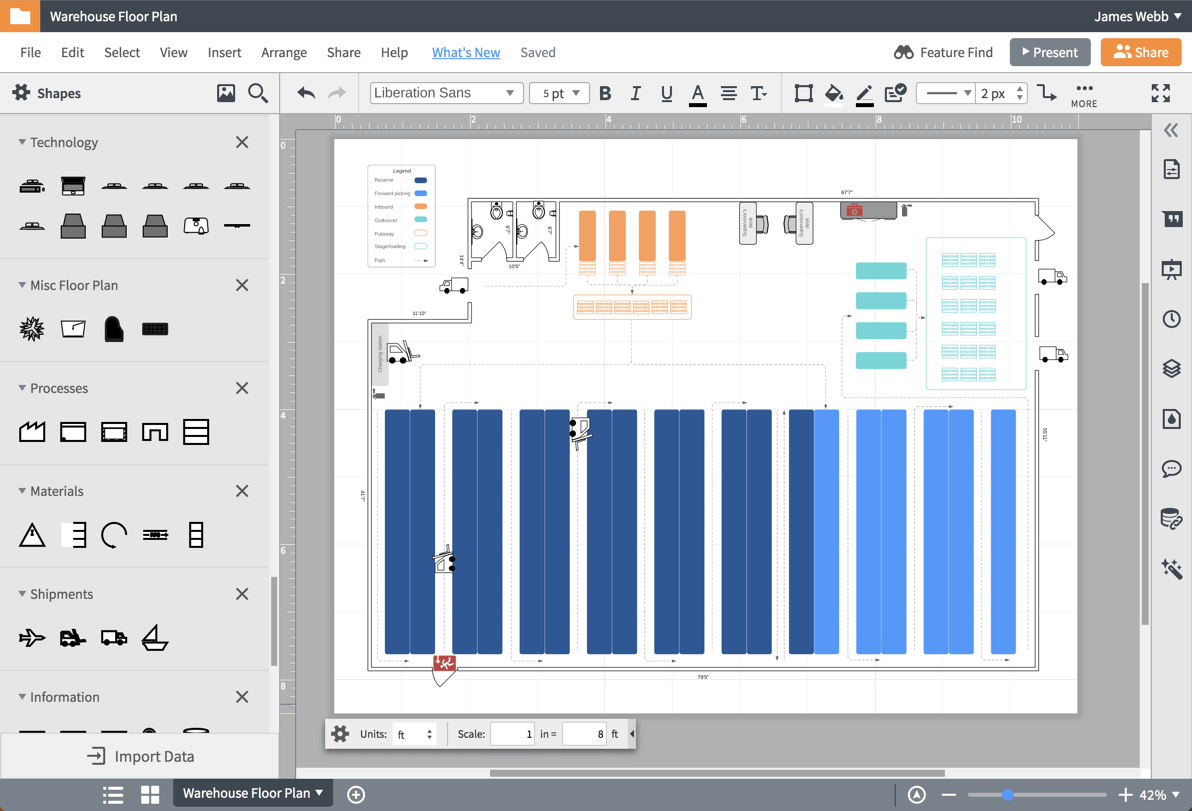
Guarantee accuracy with scale tools
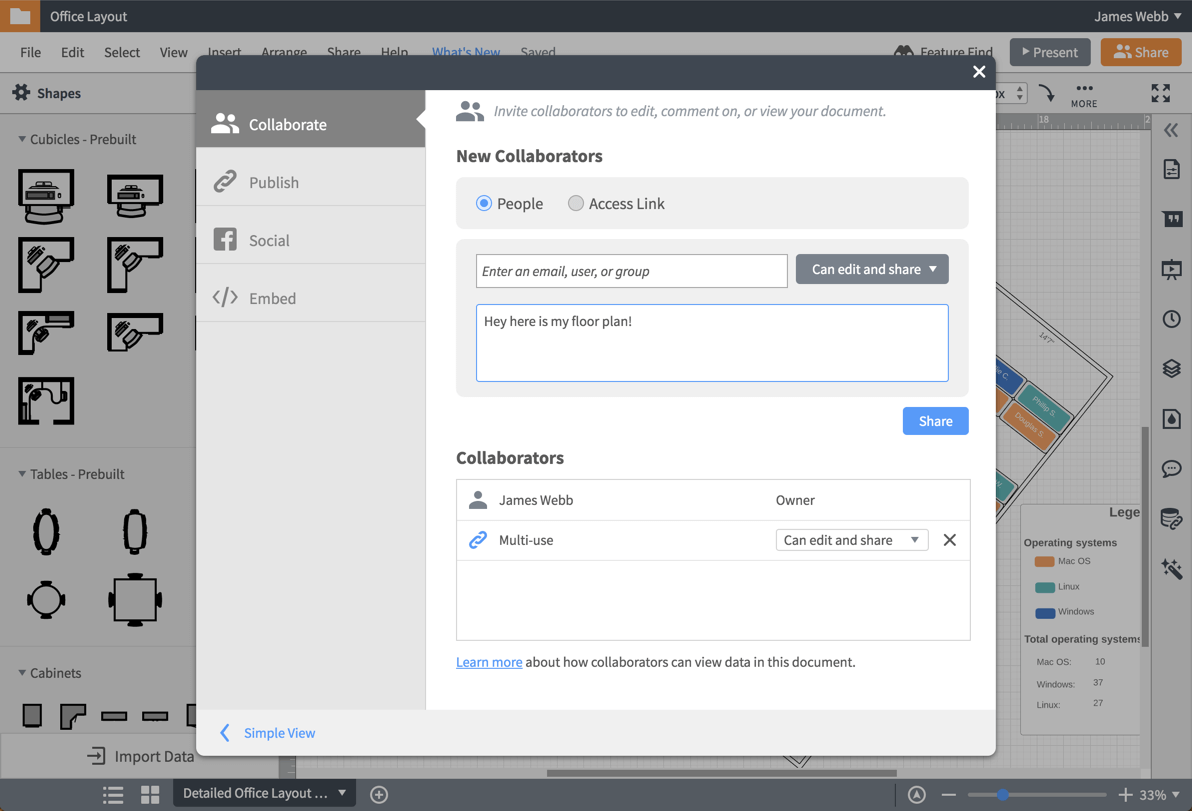
Collaborate and share
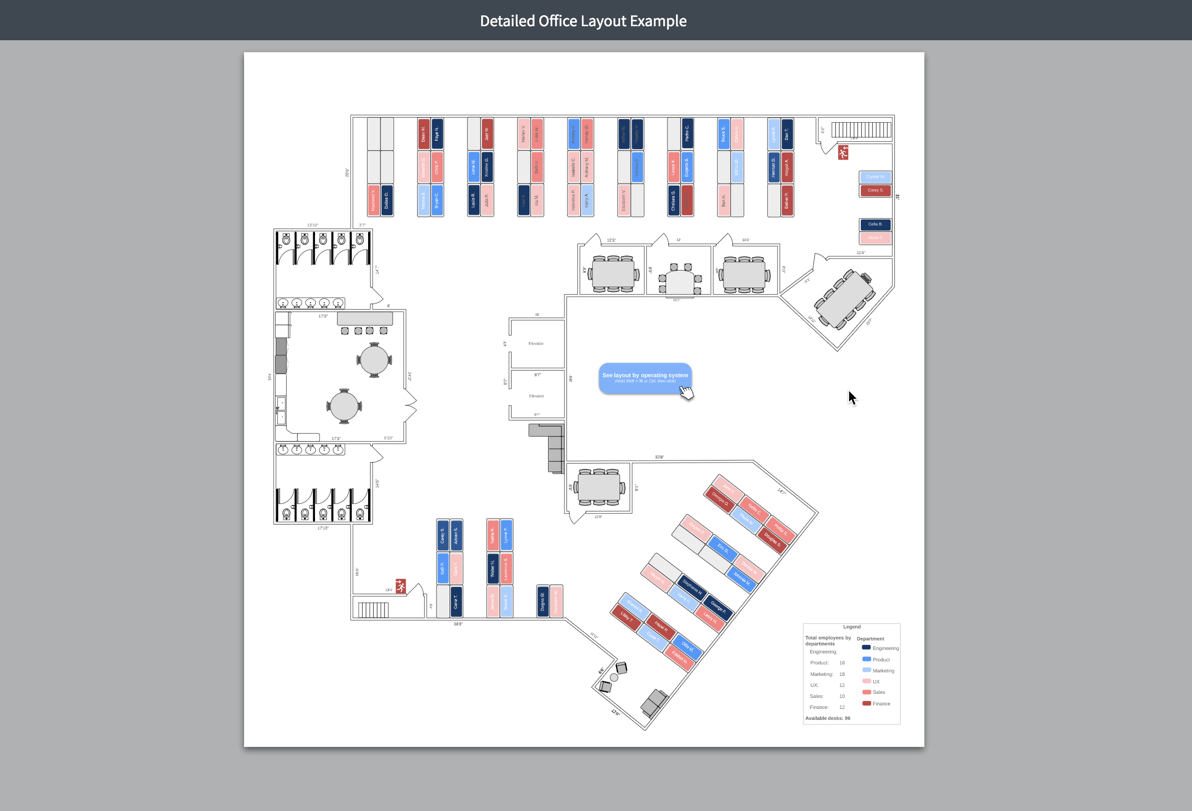
Convey your vision with presentation mode
Master the basics of Lucidchart in 3 minutes
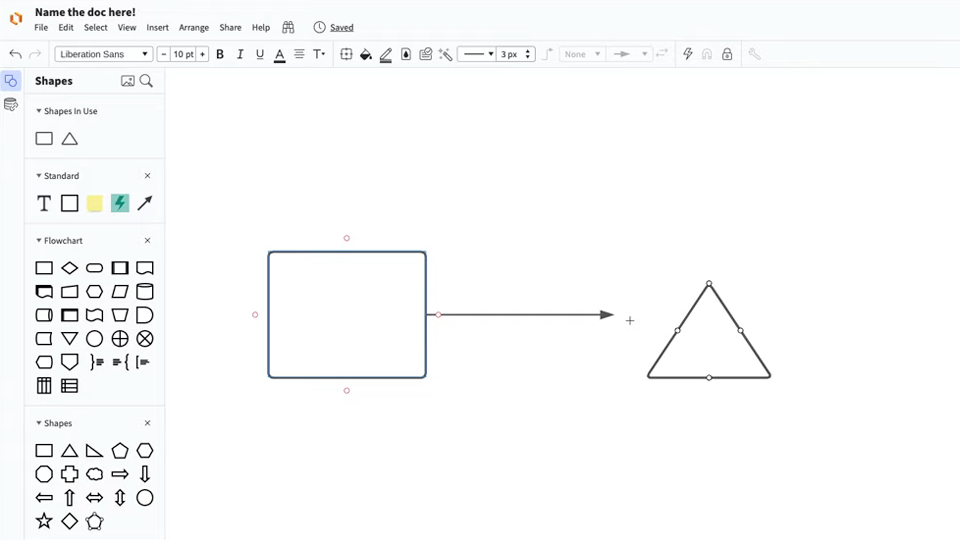
master the basics of Lucidchart in 5 minutes
- Create your first floor plan diagram from a template or blank canvas or import a document.
- Add text, shapes, and lines to customize your diagram.
- Learn how to adjust styling and formatting.
- Locate what you need with Feature Find.
- Share your diagram with your team to start collaborating.
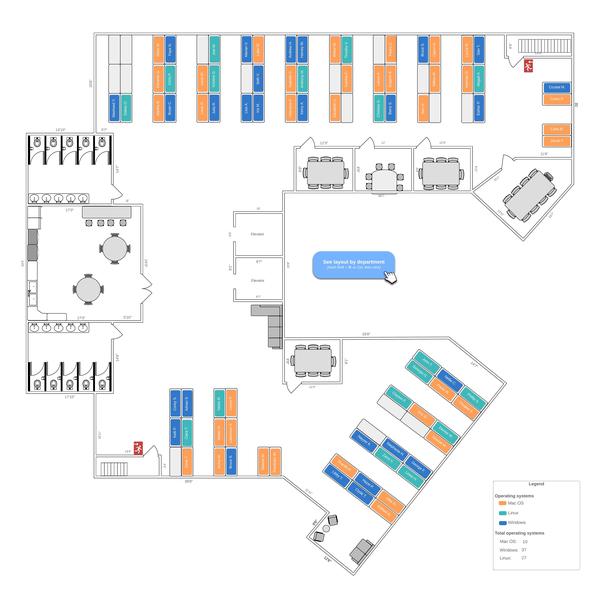
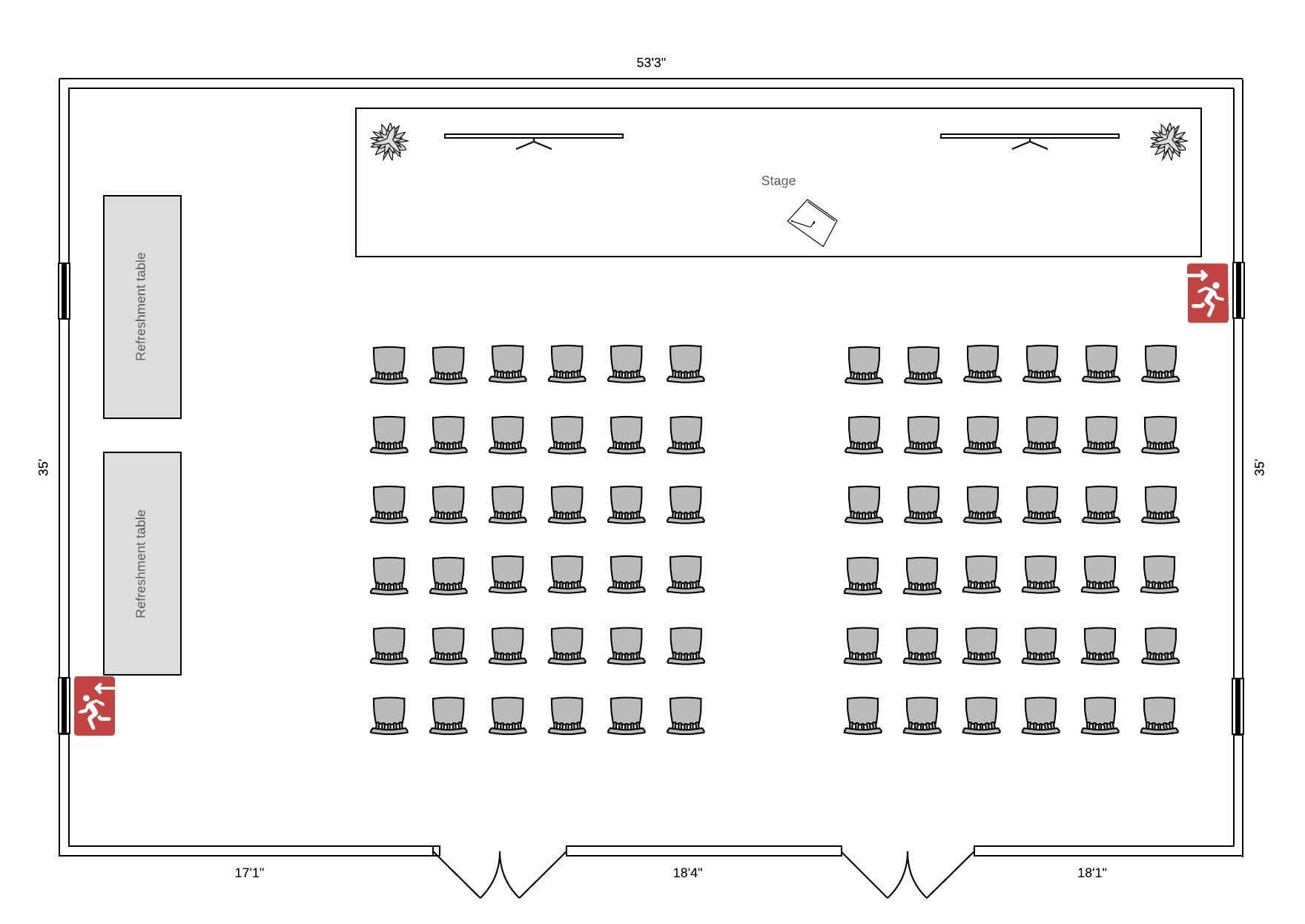
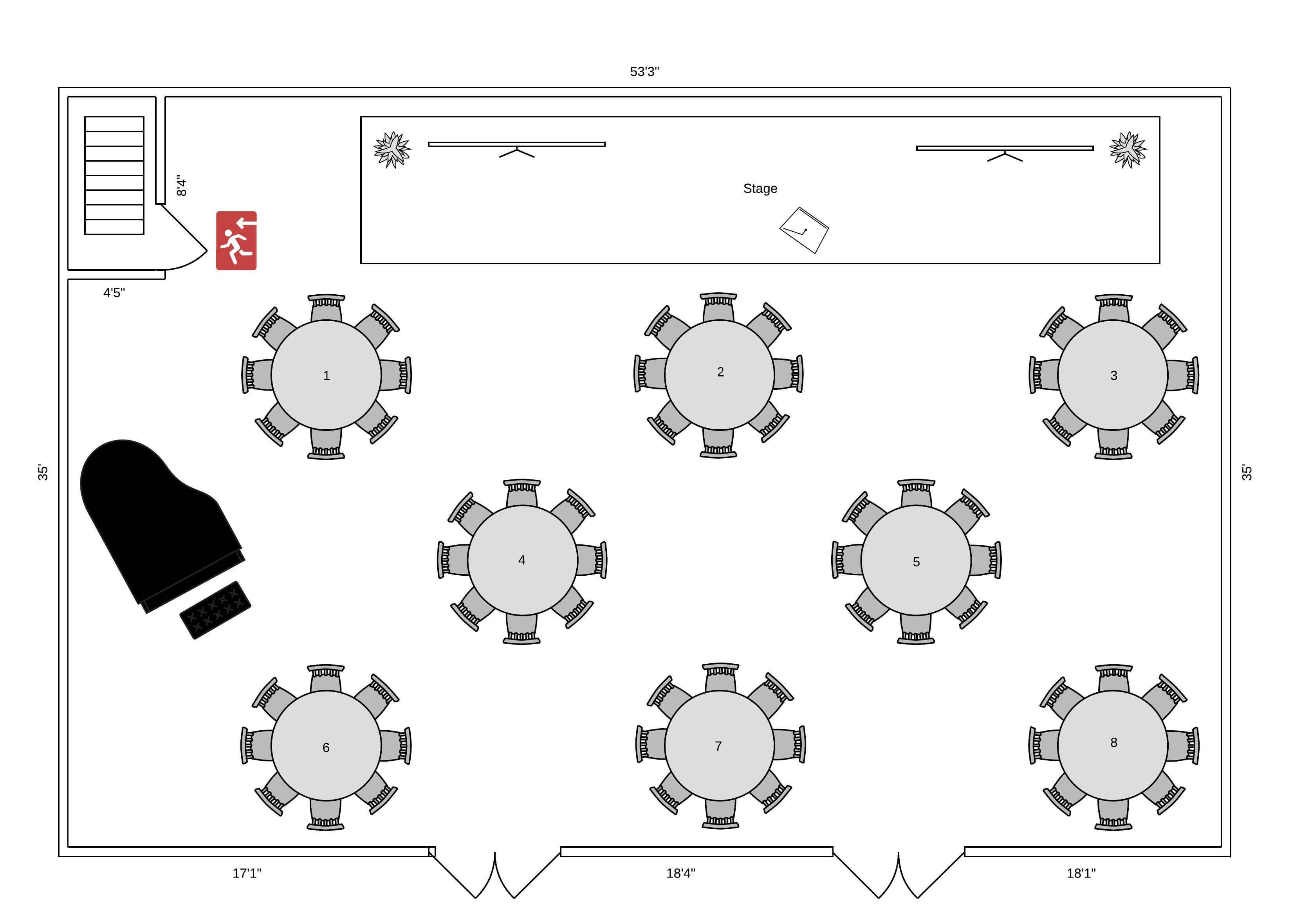
Free floor plan templates
Lucidchart integrations
Connect Lucidchart to your favorite industry-leading apps.

See why teams choose Lucidchart
Diagram, visualize data, and collaborate all in one platform.

Collaboration

Clarity
Alignment

Better Together
What is a floor plan
Floor plans are scale drawings that show the relationship between rooms, spaces and physical features viewed from above. They provide a way to visualize how people will move through the space. Floor plans makes it easier to check if the space is suitable for its intended purpose, work through any potential challenges and redesign before moving forward into more elaborate planning or building stages.