
Circuit diagram maker
Easily build and visualize your circuit diagram online with our circuit design software. Start from scratch or use one of our curated templates. Collaborate and share your diagram with others.



By registering, you agree to our Terms of Service and you acknowledge that you have read and understand our Privacy Policy.



Professional, online circuit diagram maker
Create and visualize your circuits by building a pictorial or schematic diagram.

Import existing files from Visio®, Gliffy, draw.io, and OmniGraffle

Dynamic integrations with your favorite apps

Dozens of industry-standard symbols

Work from anywhere

Create easy schematic or pictorial circuit diagrams

Highly rated
Getting Started in Lucidchart in 3 minutes
master the basics of Lucidchart in 5 minutes
- Create your first circuit diagram. You can start from a blank canvas, or you can get a head start by using a template or importing a document.
- Fill out your diagram with shapes and connecting lines, then write in text to describe what they represent.
- Format your diagram and adjust the styling to make it look just right.
- When you need to find a feature, use Feature Find to locate it right away.
- Share your diagram with your team to get their feedback, or invite them to collaborate on it with you.
Circuit diagram templates and examples
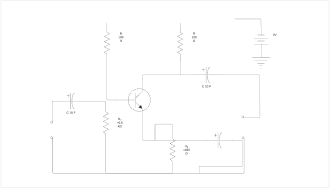
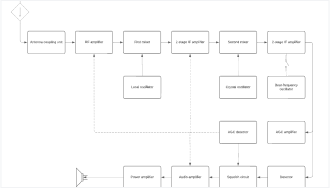
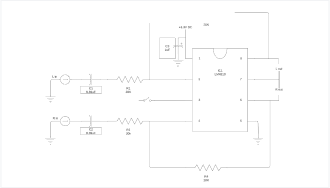
Build out your circuit diagram with one of our templates.
Lucidchart integrations
Lucidchart integrates seamlessly with your most-used apps.

See why teams choose Lucidchart as their circuit diagram maker
Diagram, visualize data, and collaborate all in one platform

Collaboration

Clarity

Alignment

Better together
What is a circuit diagram?
A circuit diagram is a visual representation of an electrical circuit. A pictorial circuit diagram uses images of components (such as photos or sketches), while a schematic diagram shows the components and interconnections of the circuit using standardized symbols.
How to create a circuit diagram in Lucidchart
Determine the goal and the audience of your circuit diagram
Consider whether your audience has professional knowledge of circuit structure and decide whether your diagram should be schematic or pictorial.
Select the shape library and drag and drop components
Select the circuit diagram shape library and begin dragging components onto the canvas. You can also import an image of your circuit for reference.
Draw and format connections
Draw lines between your components representing wire connections. Lines that intersect will automatically show as line jumps, but you can adjust this feature in your page settings for lines.
Drop and designate power sources
Drop a power source component into your diagram and designate its label, orientation, and charge with the pop-up menu when you double-click it.
Review and share
Once you’ve added each element, including connections, ensure the circuit you’ve drawn behaves as expected. Share it with others or publish it in a presentation or as an image file.