Log in

Organizational chart maker

Visualize your team structure by creating an org chart in Lucidchart. You can use one of our templates or start from scratch, and we make it easy to collaborate and share your chart with others.

Make an org chart
Sign in with GoogleGoogleSign in with MicrosoftMicrosoftSign in with SlackSlack
  • Amazon logo
  • BAWAG PSK logo
  • NBC logo
  • Venmo logo
  • Google logo

Bring transparency to your org

See everyone you work with at a glance with our org chart maker.
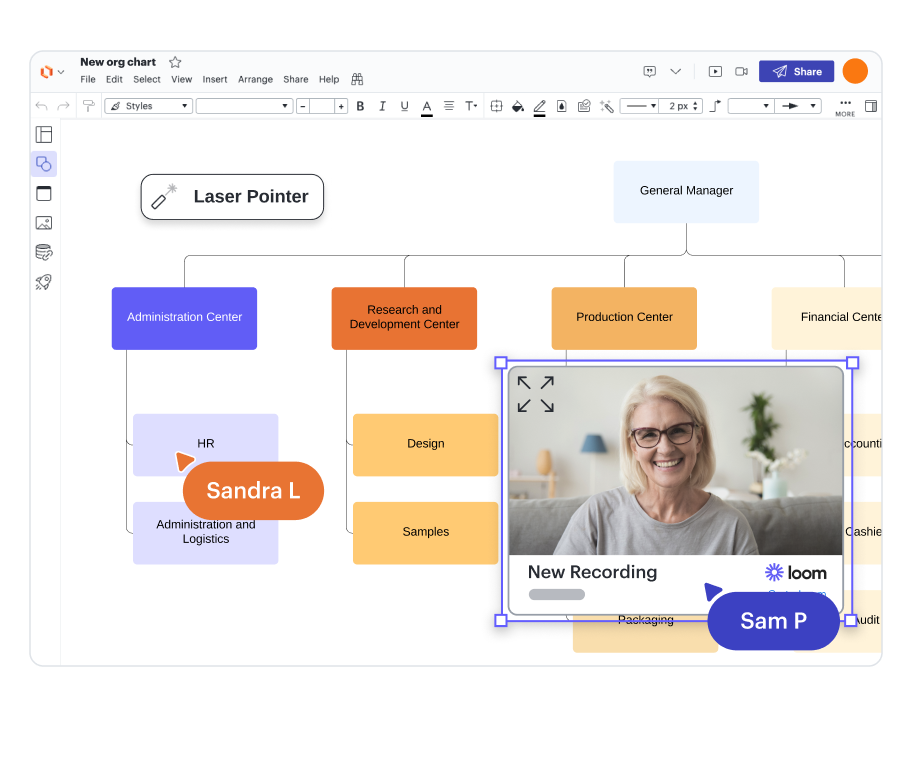
Easy introductions
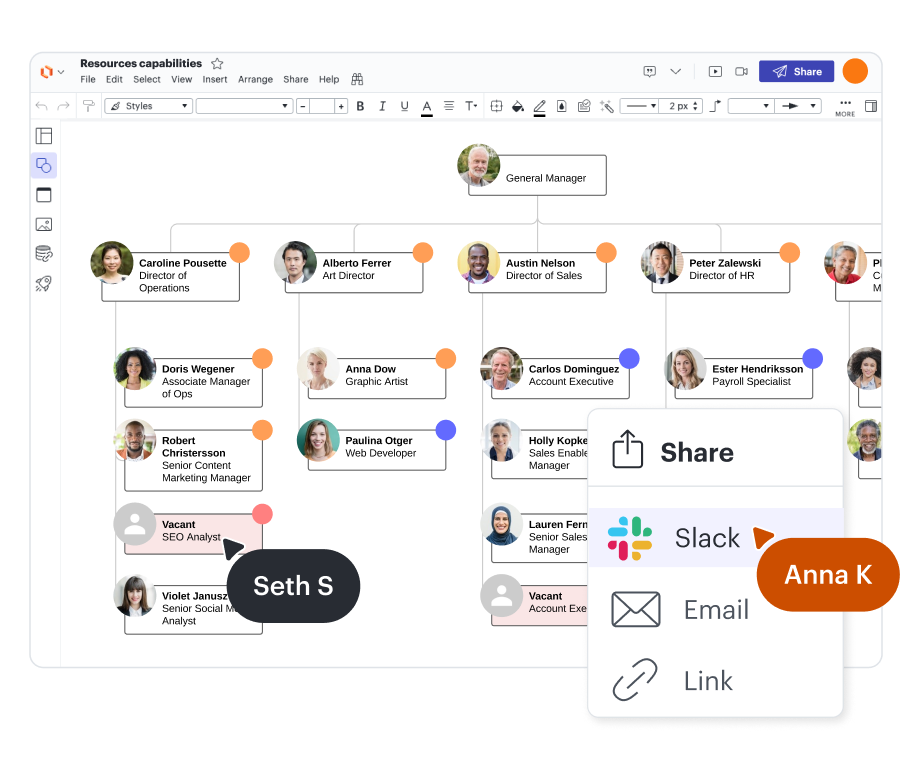
Embed a short Loom or CloudApp video clip for each person in your org chart. You’ll put faces to names quickly and learn more about your team.

Quick-start options

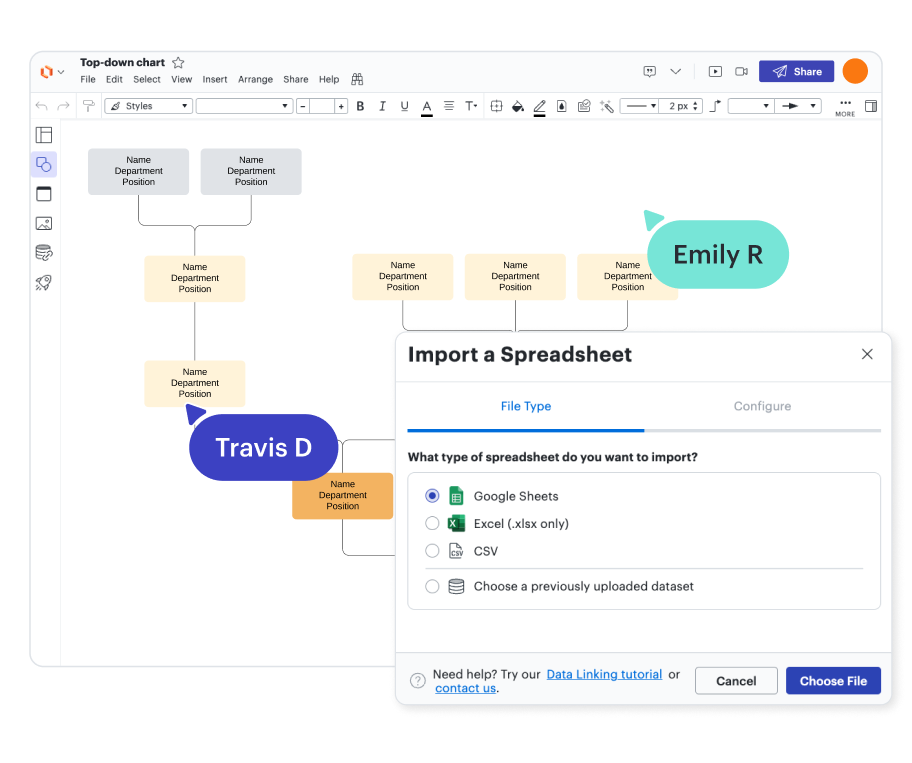
While you can build your chart yourself, you can also let our org chart software do the work. Use a template, or upload employee information using the data import feature to auto-generate a diagram.

Automatically up-to-date org charts

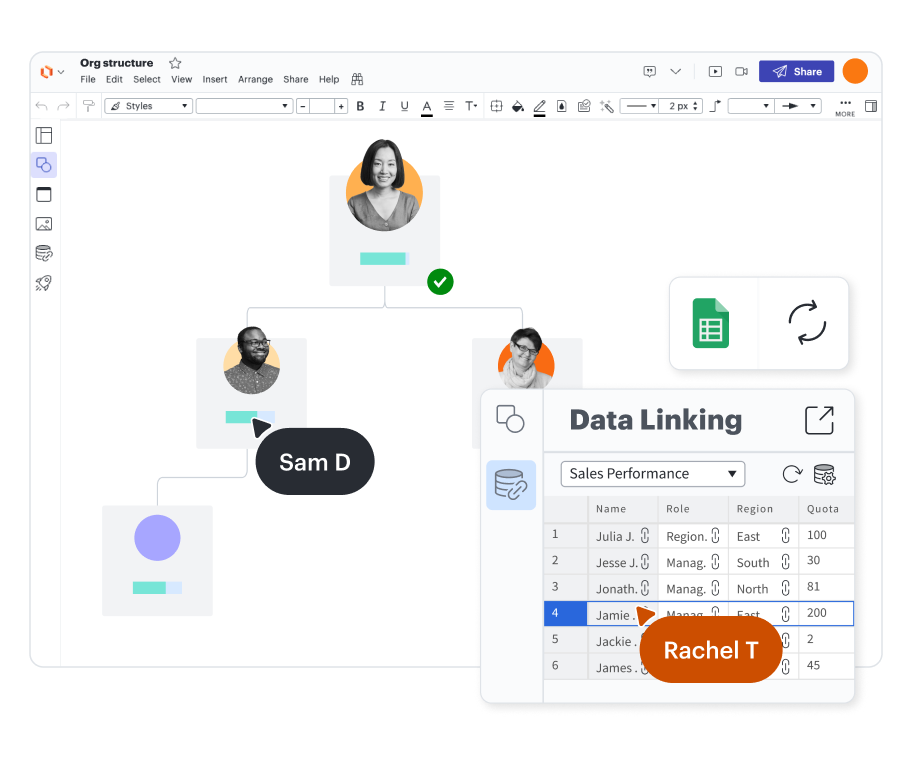
Our organizational chart creator makes updating your org chart simple—add, delete, or move employees without a hitch. If your data is linked to Google Sheets, all you have to do is hit refresh, and the chart will sync automatically.

Collaborative org chart builder

Share and collaborate on your org chart with anyone—no matter their location, browser, device, or operating system.

Customizable templates

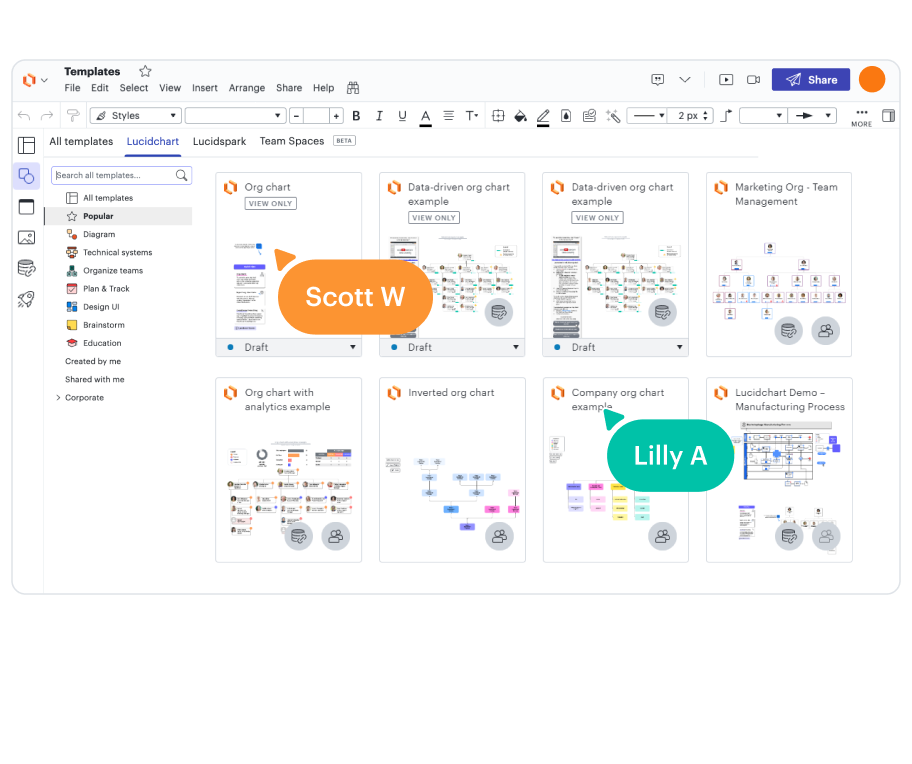
Take inspiration from one of our 1,000+ templates. You can use the template as is and avoid reinventing the wheel, or you can change it up as much as you need.

Secure software

Secure and private

We take your security seriously. Our compliance certifications include PCI, Privacy Shield, and SOC 2.

Lucid security
top 100 software products illustration

Trusted and loved

Check out our org chart creator reviews on third-party apps like Capterra, G2, and TrustRadius. You’ll see thousands of five-star ratings.

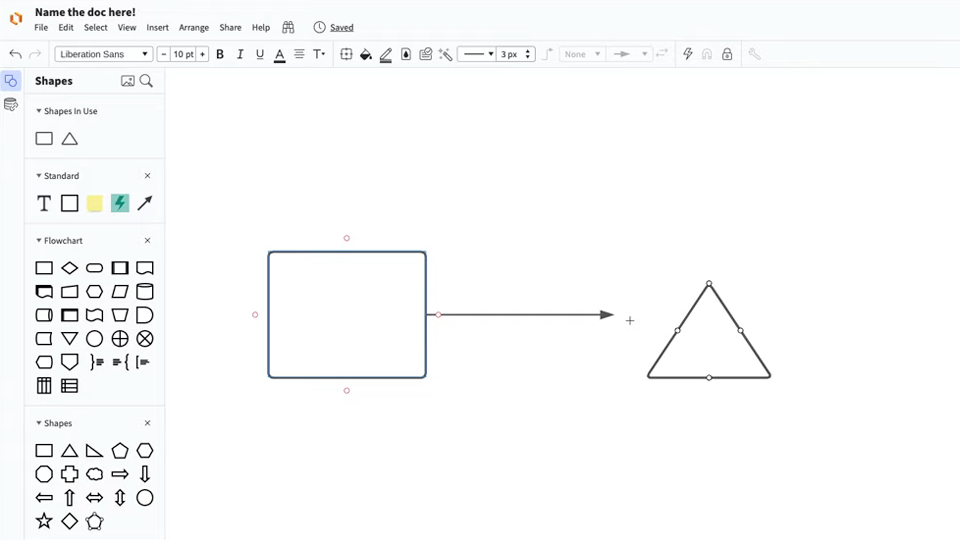
Master the basics of Lucidchart in 3 minutes
Master the basics of Lucidchart in 3 minutes

master the basics of Lucidchart in 5 minutes

  • Create your first diagram by importing information, editing a template, or starting from a blank canvas.
  • Make sense of your data by adding shapes, connecting lines, and explanatory text.
  • Adjust the styling and formatting in your diagram to make it easy to read and visually appealing.
  • Locate what you need with Feature Find.
  • Share your diagram with your team to start collaborating.
Make an org chart

Org chart templates and examples

Start building your organizational chart with a template.
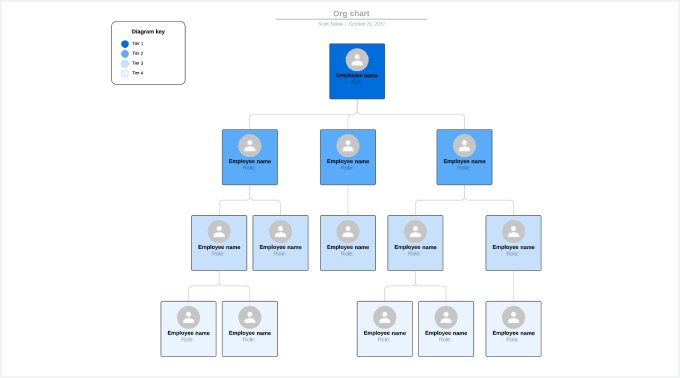
Template of a simple org chart

Free organizational chart template

Go to Free organizational chart template template

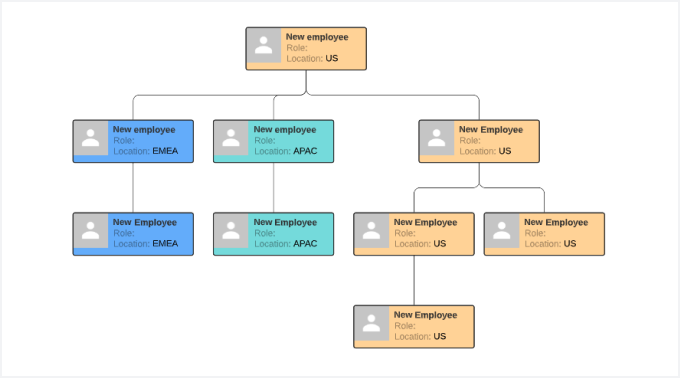
Template of org chart with employee location

Geographic organizational structure template

Go to Geographic organizational structure template template
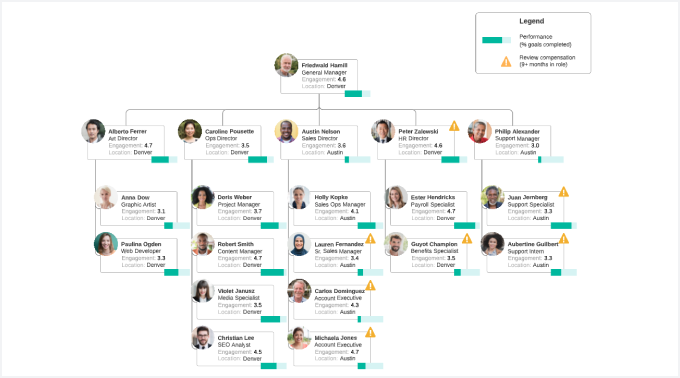
Template of data-driven org chart

Org chart template linked to data

Go to Org chart template linked to data template

Lucidchart integrations

Connect Lucidchart to all your favorite industry-leading apps.
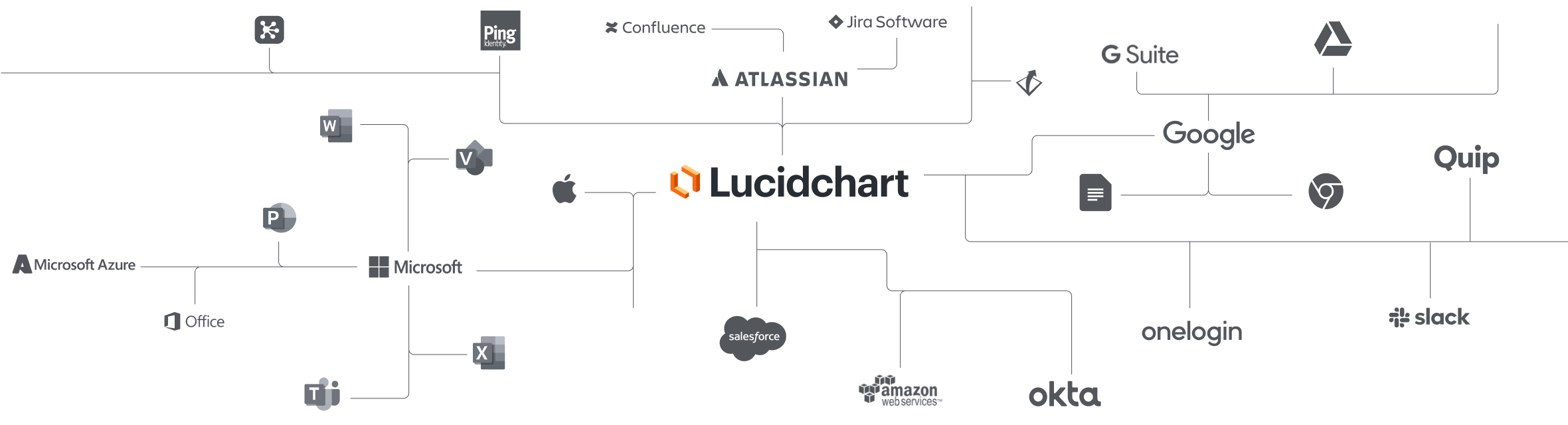
Lucidchart Integrations

See why teams choose Lucidchart

Diagram, visualize data, and collaborate all in one platform.

Collaborating with team members in Lucidchart

Collaboration

Create org charts on any device with ease. Lucidchart helps teams collaborate in real time from anywhere in the world. Enhance productivity while working together with your team to achieve your goals.

a simple orange flow chart

Clarity

Lucidchart brings clarity to the complex. Intelligent diagramming allows you to quickly visualize projects and processes from start to finish.

real-time collaboration on a flow chart

Alignment

Drive alignment with your team by collaborating in the same space. Quickly map out processes and ideas together in real time so that you never miss a beat.

person on laptop making sticky notes and charts

Better together

The Lucid Visual Collaboration Suite transforms the way you work from ideation to project completion. Brainstorm and plan in Lucidspark then map it out in Lucidchart. Create a living blueprint of your organization.

What is an organizational chart?

An organizational chart, or org chart, maps the structure of your organization. The diagram uses boxes for each person, and lines connect the boxes. Generally, vertical lines show that the person above manages the person below, and horizontal lines show that the team members are peers. When you view the chart, you’ll quickly see who reports to whom, people’s job titles, and the teams or departments that they belong to. These diagrams come in handy when you need to figure out who to talk to about a specific issue or when you’re restructuring teams to reduce inefficiency.

How to create an organizational chart

  1. Create a spreadsheet

    If you don’t already have one, create a spreadsheet to organize your employee data. Use a CSV, Excel document, or Google Sheets.

  2. Import your data

    Working in Lucidchart, apply the org chart shape library. Click “Import Data,” and follow the prompts.

  3. Customize your chart

    After Lucidchart generates your org chart, change the look by customizing the shapes, changing the fonts and colors, and adding or deleting fields.

  4. Edit the employees

    Drag and drop employees’ information on the canvas to group them, or use the “Manage Data” icon in the data panel.

  5. Share your org chart

    Present your org chart directly from Lucidchart with presentation mode. You can also create a shareable link and embed it on a webpage or in one of our integrated apps, such as Slack.

Frequently asked questions about org charts

What data sources do you support for org chart import?
You can import data to generate org charts from CSVs, Excel spreadsheets, Google Sheets, and BambooHR.
Can I add photos to my org chart?
Yes, you can. To add a headshot to an org chart shape, select the shape and click “Photo.” You can upload a photo from your local device or upload a publicly hosted image by pasting the URL in the associated text field.
How do I add different views to my org chart?
Use Group View to create an intuitive framework that enables you to visualize your org chart data in a new way, without ever changing the original data source. For example, if you separated employees according to a Scrum team, which includes members of different departments, then you’d create a Group View that's color-coded and sorted by who's in a certain Scrum team.
What should I know before getting started on building an organizational chart?
1. To edit an org chart, double-click any shape. The org chart context panel will appear to the right of the canvas. 2. To edit a single shape, triple-click the shape. Changes made to a single shape will override the universal settings of your org chart. 3. Press the ESC key on your keyboard to exit the org chart editor.
How do I move only one set of child boxes to a lower level without moving the rest of the org chart child boxes that are currently on the same level?
A workaround is to cut an employee shape and paste it outside of the main body of the org chart, which will convert it to a regular shape that can be positioned freely. To extend reporting lines and place a set of child boxes on a new level, you could insert a new employee shape between two levels and make that shape transparent. This will create the appearance of a long reporting line with a gap in the middle where the hidden employee shape is. You can then drag a new line onto the canvas to fill in the gap in the reporting line.
  • Learn more
What if I have more org chart-related questions?
Read through our FAQ section in our Help Center to learn more about creating org charts in Lucidchart.

Get started

  • Pricing
  • Individual
  • Team
  • Enterprise
  • Contact sales
PrivacyLegalCookie privacy choicesCookie policyYour privacy choices iconYour privacy choices

© 2026 Lucid Software Inc.