
Mind map maker
Visually capture and organize your thoughts with Lucidchart. Our mind map software makes it easy and intuitive to brainstorm around a central topic and connect supporting ideas.



By registering, you agree to our Terms of Service and you acknowledge that you have read and understand our Privacy Policy.


Mind mapping made easy
Use our mind map creator to structure and share ideas on an infinite canvas.
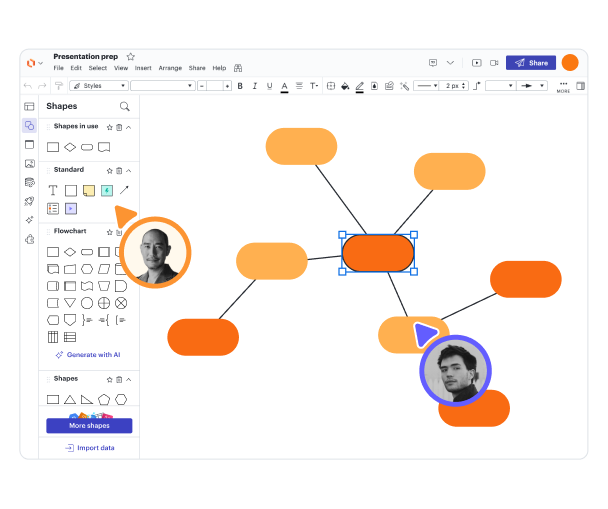
Map your thoughts

Import and export ideas

Share your mind map
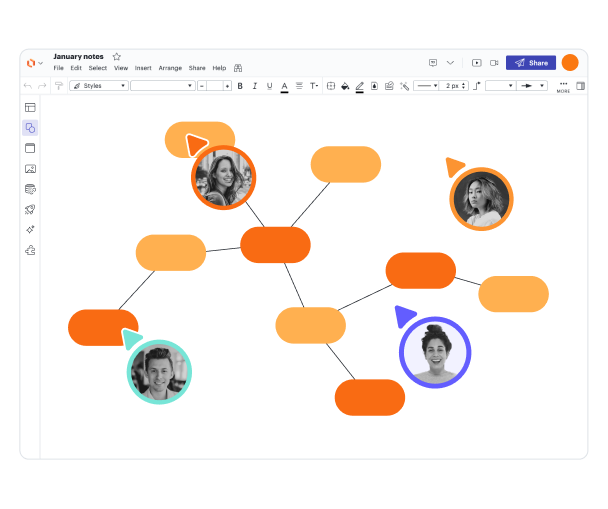
Collaborate freely
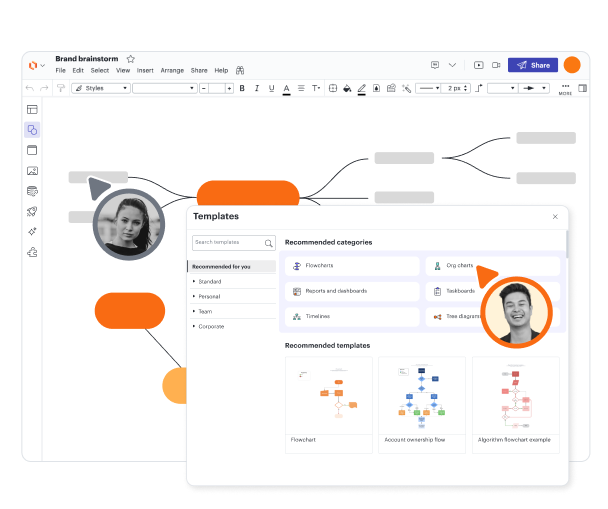
Start with a mind map template

Feel secure with Lucidchart

See why everyone raves about us
Master the basics of Lucidchart in 3 minutes
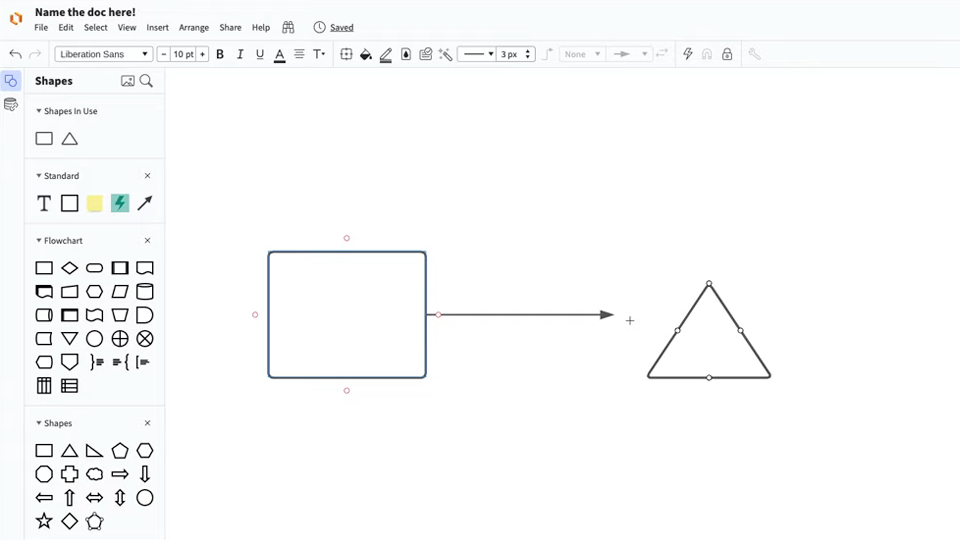
master the basics of Lucidchart in 5 minutes
- Create your first mind map from a template or blank canvas.
- Add shapes, lines, and content to customize your diagram.
- Style and format your diagram to fit your use case.
- Use Feature Find within Lucidchart to locate additional shapes and features.
- Share your diagram with your team to get feedback and continue iterating.
Mind map templates
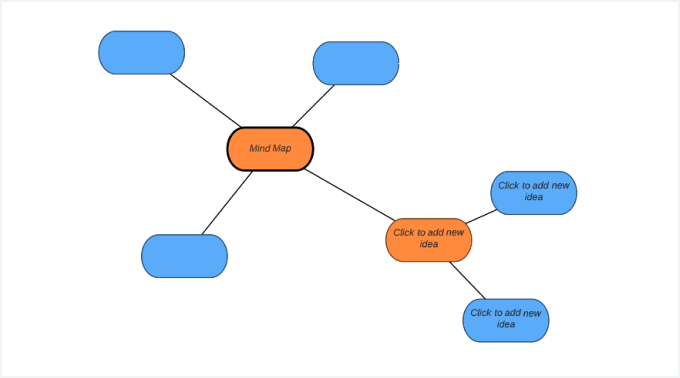
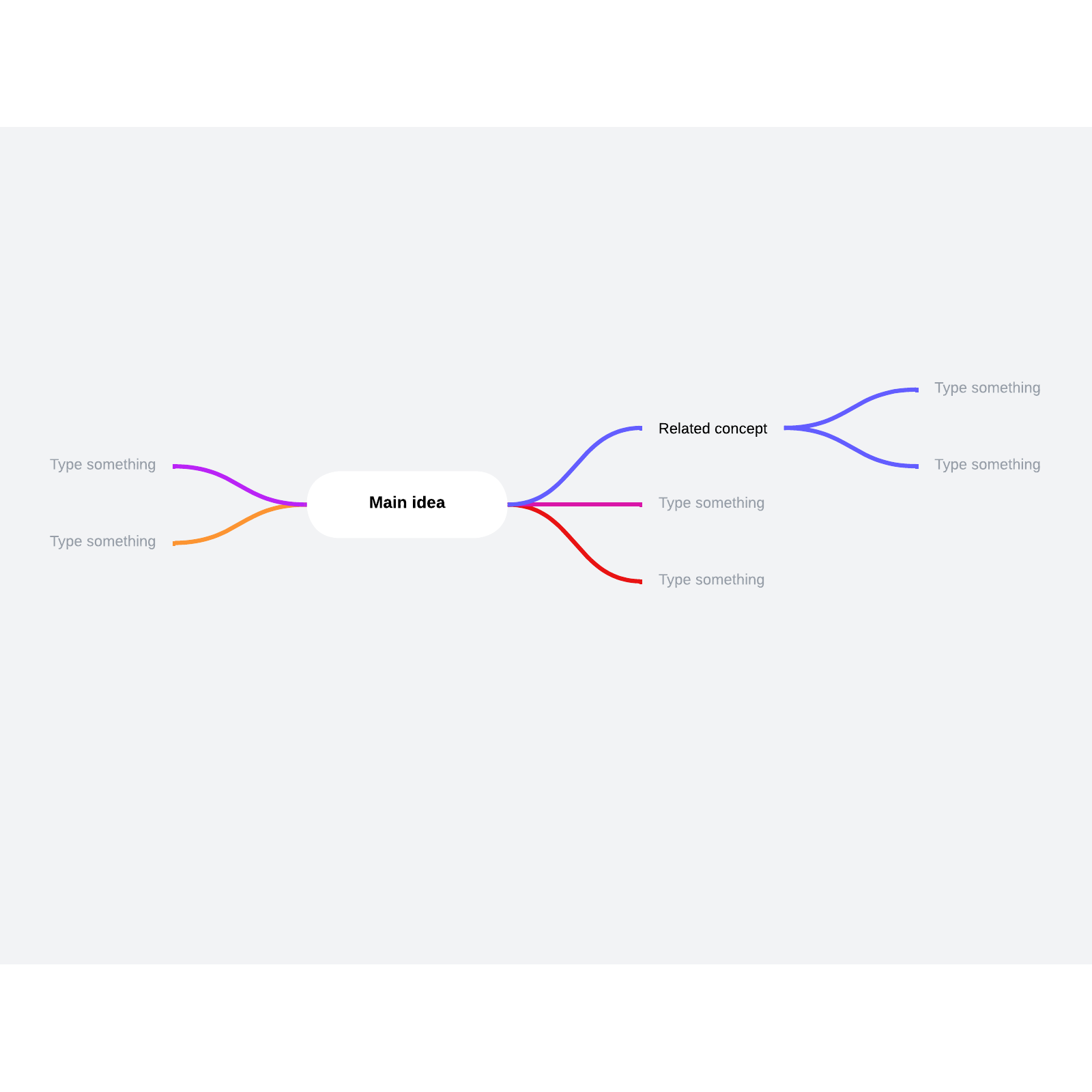
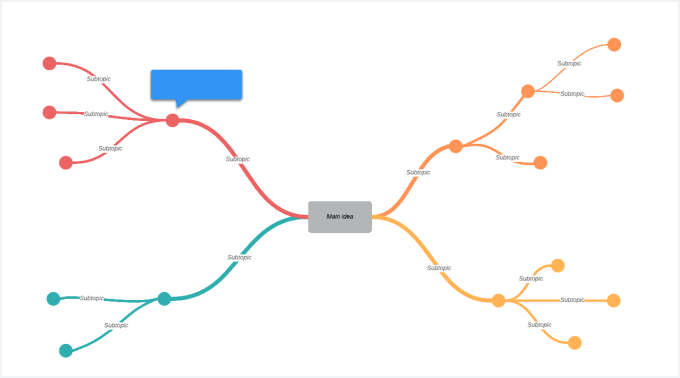
Make your own mind map by starting with one of our templates.
Lucidchart integrations
Connect Lucidchart to your favorite industry-leading apps.
See why teams use Lucidchart as their mind map maker
Diagram, visualize data, and collaborate all in one platform.

Collaboration

Clarity
Alignment

Better together
What is a mind map?
A mind map is a way to capture your thoughts. Start with a central idea, and then create branches from it to related concepts. From there, you can add and connect ideas freely. Mind maps work well for visual thinkers, and the flexible structure enables out-of-the-box brainstorming.
How to make a mind map in Lucidchart
Create your core idea
The core idea represents what you want to brainstorm about, like a problem you're trying to solve or the goal of a project that you’re planning. Drag a shape from the mind map shape library to your board and add the core idea to it. That shape will remain central as your map grows.
Add parent branches
Make branches that outline your basic subtopics. Drag a line from your central idea, then choose a shape from the auto-prompt and fill in your subtopic. You can also use the hotkey “Tab” to create and connect your parent branch.
Add child branches and key words
Create more branches from the subtopics you’ve added. To add more detailed information, use the hotkey “Enter.” Use the hotkey “Z” to collapse and expand the child branches so your mind map stays easy to scan.
Add colors and images
While not strictly necessary, colors and images help you visually sort and understand your ideas. Using them can make your mind map richer and more helpful to you.
Share your mind map
Share your mind map online, even with people who don't use Lucidchart. Generate a URL to share the diagram in an app integrated with Lucidchart, embed your diagram in a wiki, or export your diagram and outlines to different file types.